1. Wafer Map Overview & Layout
DLOG's interactive wafer map engine parses binary STDF V4 datalogs produced by ATE (Automatic Test Equipment) and instantly maps physical X, Y die coordinates (from PRR/PIR records) with parametric electrical test records (PTR/MPR). Even for wafers with large die counts, zoom with the mouse wheel and drag to pan to immediately enlarge and inspect any desired region.
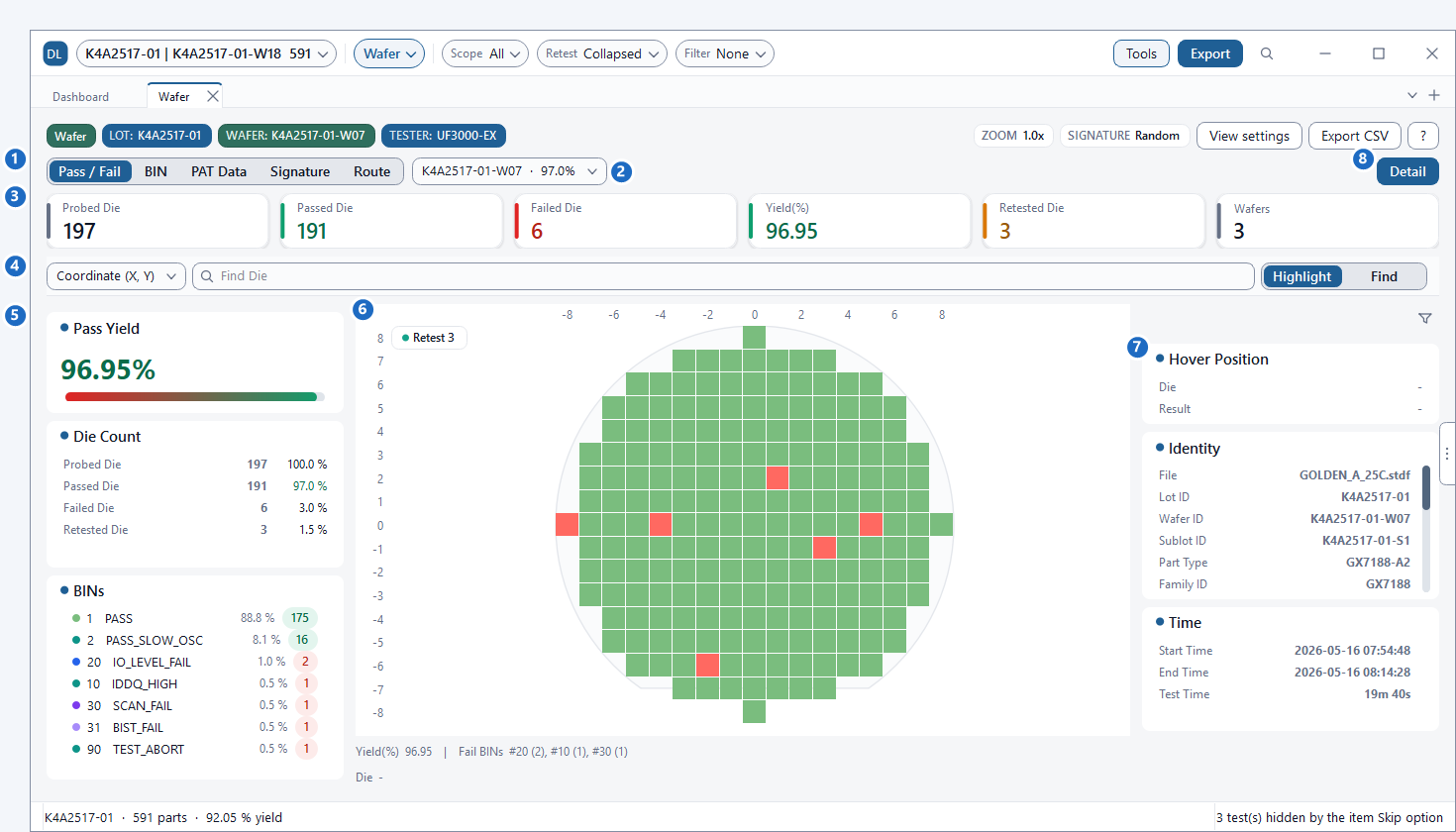
| No. | UI Area | Description and Functionality |
|---|---|---|
1 |
View Mode | Selects the coloring scheme. Instantly switches between Pass / Fail, BIN, PAT Data, Signature, and Route. |
2 |
Wafer Selector | Picks an individual wafer or STACKED (multi-wafer overlay). Displays each wafer's test yield beside its name. |
3 |
Summary Cards | Real-time KPI metrics: Probed (total dies), Passed, Failed, Yield(%), Retested Die count, and Wafers count. |
4 |
Find Bar | Searches dies by X,Y coordinates, Soft/Hard BIN, Site number, test sequence number, or PART_ID to Highlight them or move focus immediately. |
5 |
Left Panel | Displays Pass Yield gauge, Die Count, and BINs list. Expanding the window unfolds the BIN Histogram. Clicking any BIN row highlights matching dies across the map. |
6 |
Wafer Map Canvas | High-performance grid where each cell represents a physical semiconductor die. Supports smooth mouse wheel zooming, drag-panning, and die tooltips. |
7 |
Right Panel (Info Panel) | Shows Hover Position (coordinates and result of hovered die), Identity (file, lot/wafer ID, etc.), and Time (start/finish/test duration), and when scrolled down, displays Wafer Geometry (Flat/Notch orientation, +X/+Y direction, etc.) and Site Status (per-site yield). |
8 |
Detail Card | Detailed inspection card displaying coordinates, site, pass/fail result, failing test items, and parametric measurements for the selected die. Also opens on die right-click. |
The wafer map is enabled for wafer sort / probe test data containing physical X, Y coordinates in STDF PRR records. If opening final test data lacking coordinates, DLOG displays the notification "This lot has no wafer coordinates." Non-spatial views like Table, Record, and Die History remain fully functional.
2. 5 Core View Modes
DLOG provides 5 specialized coloring engines on the wafer canvas, allowing engineers to examine spatial signatures from different physical and statistical angles with a single click.
| View Mode | Color Criteria | Engineering Use Case |
|---|---|---|
| Pass / Fail | Binary test outcome: Green (Pass), Red (Fail). In STACKED multi-wafer mode, renders a continuous pass rate gradient from Red (0%) to Green (100%). | Initial health check of the wafer to locate defective areas and overall yield level. |
| BIN | Colors dies by their assigned Soft BIN number. Filterable via the left BINs list or view options (Pass only, Fail only, single BIN). | Identifying localized clusters of specific failure categories (e.g., leakage current, open/short, timing speed bins). |
| PAT Data | Renders the actual parametric measurement value of a selected test item as a continuous color spectrum (Blue low, Red high). Guided by robust PAT LL / HL limits. | Detecting parametric outliers that pass standard spec limits (LSL/USL) but deviate significantly from neighboring dies. |
| Signature | Classifies spatial defect topology into recognized semiconductor fab patterns: Edge-Low, Center-Low, Ring, Cluster, and Random with a quantitative Cluster score. | Used to narrow down root-cause direction from defect shape. E.g., Edge suggests edge process uniformity (etching, etc.), Ring/Center points to in-plane variations like CMP, Cluster indicates particle or localized defects, and Random has weak spatial factors so probe contact or tester issues should be checked. |
| Route | The sequential test execution order (path line) measured by the probe across dies, connected with arrows from start (green) to end (red). | Used to verify probing sequence (such as serpentine order) and observe whether failures concentrate along specific segments of the path. |

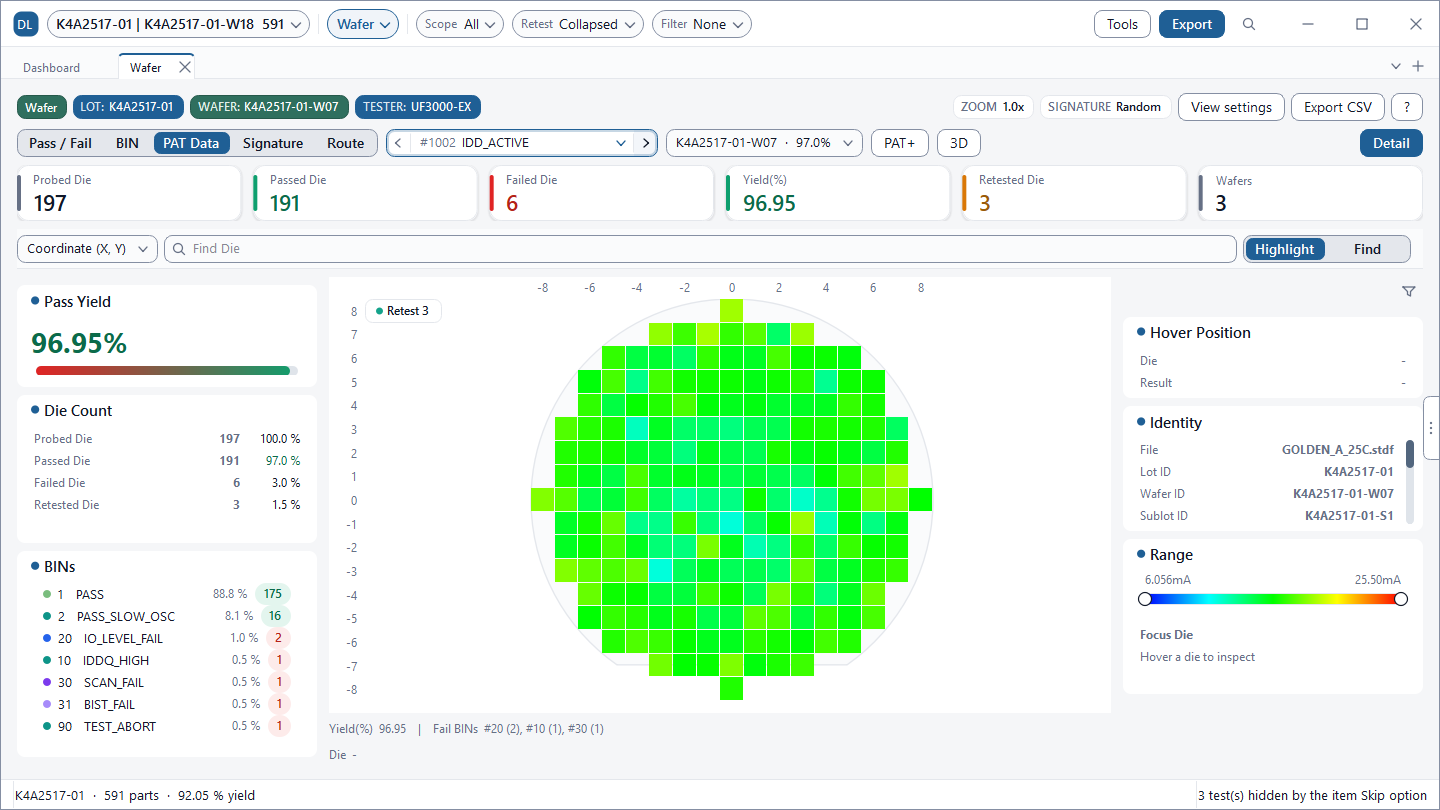


Robust PAT Limits & Outlier Band Tuning
Selecting any test item (e.g., OSC_FREQ, IDD_QUIESCENT, VREF_BG) activates the right-hand Range handles for interactive value filtering.
- PAT LL / HL (Part Average Testing Limits): Robust lower and upper limits computed as Median ± k × σ. Instead of sample standard deviation which is sensitive to extreme values, σ is estimated using the Interquartile Range (default
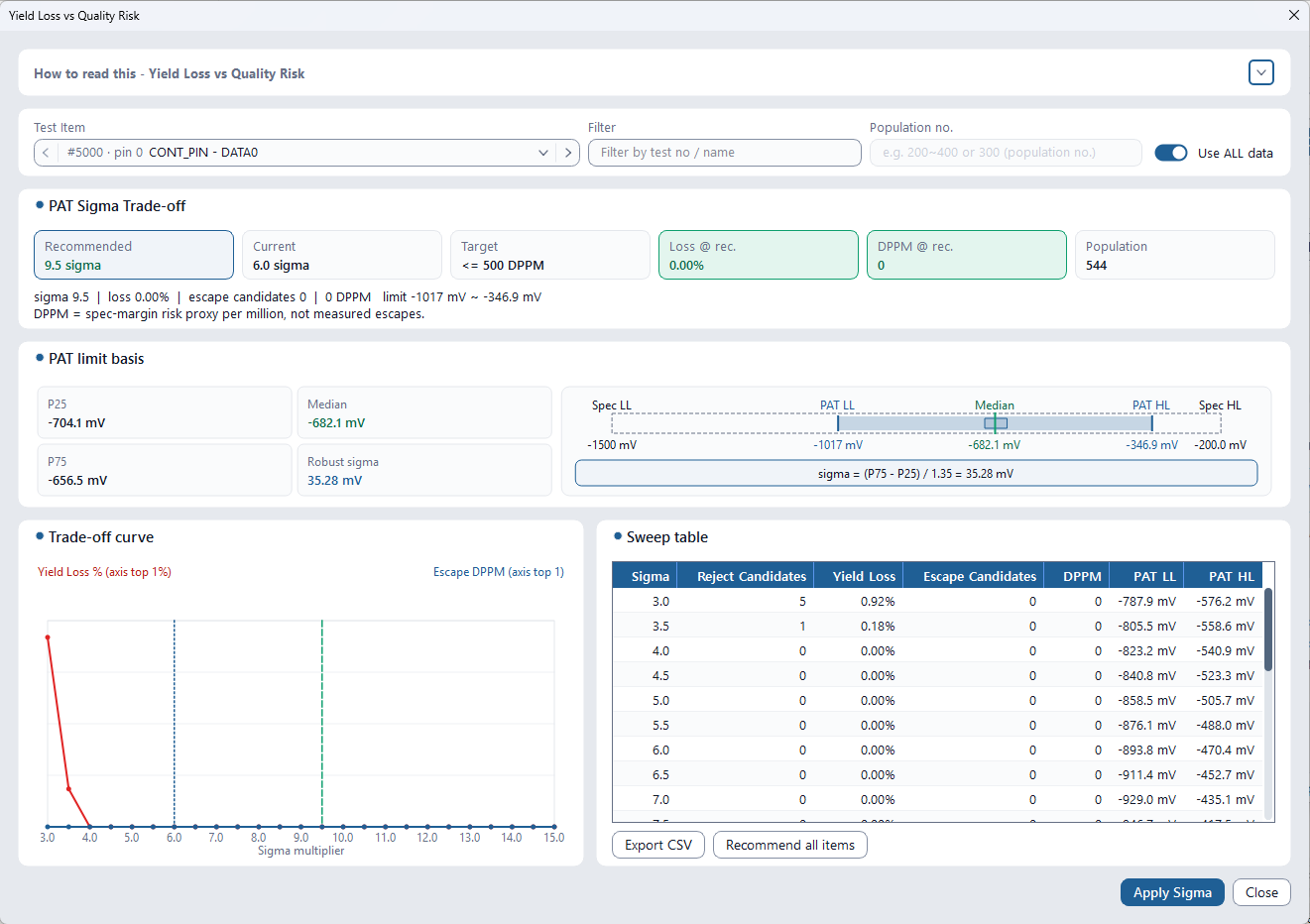
σ ≈ IQR / 1.35) so it is less affected by extreme values. The percentile spread and divisor can be adjusted in Tools > Main Option > PAT estimator. - k Multiplier Adjustment: Adjust k via Lower Sigma (L) / Upper Sigma (H) in View settings > Wafer View Options (default 6, matching the robust 6σ method used in AEC-Q001). Lowering k increases outlier candidates. An appropriate k can be evaluated in Section 5 Yield Loss Trade-off.
Understanding Cluster Score in Signature Mode
Signature mode divides the wafer into center, mid-ring, edge zones, and 4 quadrants. The Cluster score measures spatial clustering between 0 and 1:
- Cluster score ≈ 1 (Strongly clustered): Failures are physically concentrated, pointing to fab equipment issues (particle drops, photoresist puddling, chemical etch rate gradients).
- Cluster score ≈ 0 (Random distribution): Low yield with near-zero cluster score indicates non-spatial root causes: prober pin contact resistance, tester channel noise, or inadequate timing margins.
3. Interactive Navigation & Die Inspection
DLOG's wafer map is a high-speed interactive workspace where engineers can smoothly explore millions of measurements and jump between analytical views in a single second.
| Action / Shortcut | Behavior | Description |
|---|---|---|
Mouse Wheel |
Zoom In / Out | Smoothly zooms centered around the mouse cursor position. |
Left-Click Drag |
Pan Canvas | Pans the magnified wafer view in any direction. |
Hover |
Real-Time Coordinate Tracking | Hovering over a die highlights X/Y position on the rulers and updates the right panel's Hover Position with the coordinates and result in real time. |
Right-Click Die |
Die Detail Card | Opens a comprehensive pop-up card displaying coordinates, site number, failing test name, and full parametric readings with jump buttons. |
| Ctrl + F | Find Die | Focuses the Find bar to locate dies by coordinates (e.g., 15,22), BIN number, site number, sequence, or Part ID. |
| Ctrl + 0 | Fit to Window | Instantly resets zoom and pan to fit the entire wafer map into the viewport. |
Retest N Toggle |
Highlight Retested Dies | Fades non-retested dies and highlights only dies that underwent retesting (N dies). |
#1 / LAST Toggle Button |
Compare Retest Steps | Toggles between initial probe (#1) and final measurement (LAST) in the detail card to check recovery status. |
Right-clicking any die allows immediate transitions to other specialized DLOG tools:
- Table / Record: Jump immediately to the full tabular data record or raw STDF PRR record for this die.
- Die History: Switch to the chronological lifetime inspection timeline showing all retests for this die.
- Chart: Inspect the selected die's test data within the Charts view.
- Edit: Navigate to the Direct Edit view to modify the die's Bin or parametric measurements (changes are committed with Save STDF).
4. Multi-Wafer Stacking (STACKED)
A single wafer failure might be an isolated incident. But when dozens of wafers exhibit defects at the exact same coordinates, it reveals a systematic fab or tooling flaw. DLOG's Wafer Stacking overlays up to 25 wafers per lot (or hundreds of wafers across multiple files) into a single composite map.
| Stacking View | Aggregation Method | Engineering Diagnostics |
|---|---|---|
| Pass / Fail (Pass Rate) | Ratio of passing wafers at each (X,Y) coordinate across stacked wafers. Colored from Red (0%) to Green (100%), with summary cards showing Pass on All Wafers / Fail on Any Wafer / All-Pass Rate (%). | If specific coordinates remain persistently red across multiple wafers, suspect lithography reticle shot defects (cross-check in Reticle Map) or chamber-localized defects. |
| PAT Data > PAT Fail | Counts wafers at each coordinate that fall outside the common PAT band aggregated across all open wafers. | Pinpoints vulnerable locations where dies pass specs but repeatedly show outlier measurements. |
| PAT Data > Mean | Renders the arithmetic mean of parametric values at each coordinate as a heatmap (or 3D bar height). | Reveals cross-wafer gradients to provide clues on in-plane chamber variations like thermal or gas flow distribution. |
| PAT Data > Sigma | Renders cross-wafer dispersion (standard deviation) at each coordinate as a heatmap. | Identifies unstable die positions that experience abnormally high variation across wafers. |
In Mean stacking, colors and bar heights automatically stretch to match the spread of coordinate means so small differences remain visible. If the spread is under 10% of the PAT band, a "Low variation" notice appears, so check numeric magnitudes. Enabling Band returns to the pooled PAT band scale, and cells with few measured wafers are rendered dimmed.
5. PAT+ (DPAT · SPAT) & Multivariate MVA-PAT Outlier Screening
Even if an IC passes all datasheet spec limits (LSL/USL), dies that deviate from the normal distribution carry elevated risks of early infant mortality. DLOG overlays robust statistical Part Average Testing (PAT) concepts, as addressed in AEC-Q001, directly on the wafer map. This feature aims to prescreen electrically passing yet statistically suspicious dies; flagged parts are review candidates, not hard rejections.
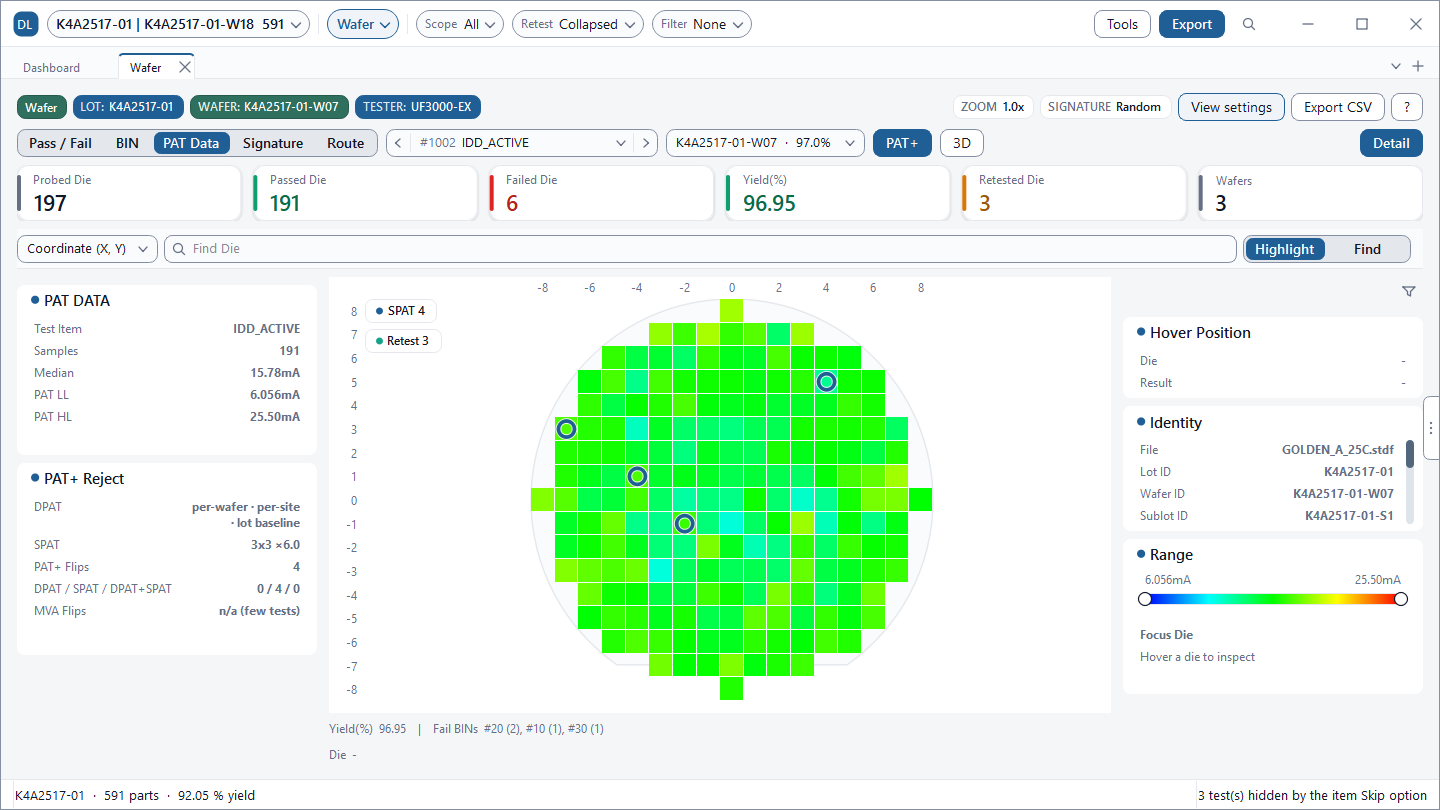
Enabling the PAT+ button in PAT Data mode overlays circular target badges on outlier dies and reveals the PAT+ Reject summary card on the left (method, SPAT configuration, and count breakdown). Configure active methods under View settings > Wafer View Options > PAT Overlays.
| Method | Reference Population | Detection Target |
|---|---|---|
| DPAT per-wafer (Wafer PAT) | All passing dies within the same wafer | Screens dies deviating from that wafer's own distribution. Helpful when a die looks normal across the entire lot but stands out on its specific wafer. |
| DPAT per-site (Site PAT) | Dies tested on the same probe card site | When individual sites have test offsets, identifies outliers against each site's own baseline. |
| DPAT vs lot baseline (Lot PAT) | All passing dies across the entire loaded lot | Screens dies deviating from the collective lot population, catching wafer, die, or tester drift. |
| SPAT (Spatial PAT, NNR Neighborhood) | Immediate neighboring dies (screen displays 3x3 ×6.0 neighborhood & multiplier) |
Catches dies that deviate relative to adjacent neighbors—revealing scratches, micro-clusters, and edge boundary defects invisible on global histograms. |
| MVA-PAT (Multivariate) | Multi-dimensional parametric correlation space | Flags dies where individual tests pass but the parameter combination is statistically anomalous. Select correlated tests reflecting the same device physics. |
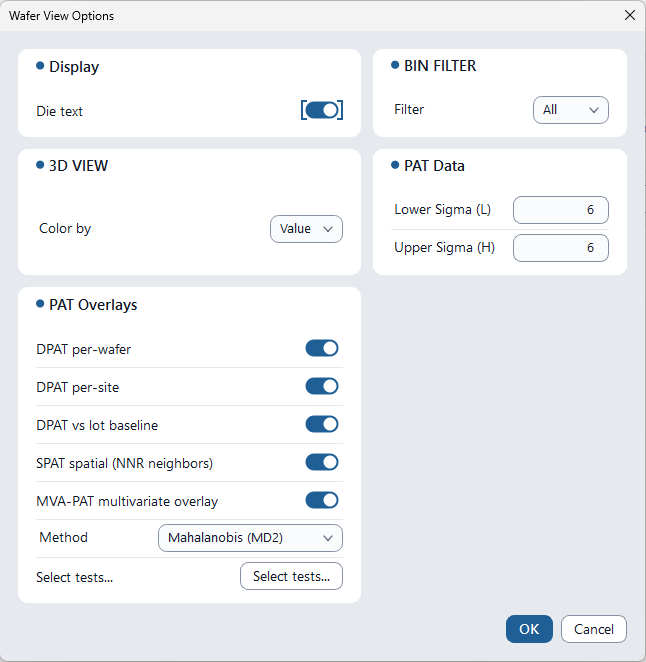

- Mahalanobis (MD2): Evaluates statistical distance while accounting for parameter covariance. Recommended default for correlated metrics.
- PCA reconstruction (SPE): Extracts dominant variance axes via Principal Component Analysis and flags dies with high reconstruction error. Ideal for high test counts where correlation patterns may break.
- Isolation Forest: Tree-based ensemble isolating points without distributional assumptions. Catches rare anomalies that linear models miss.
Always select related tests reflecting common physical mechanisms. Irrelevant parameters dilute statistical power. Flagged units are review candidates among passing dies, not automatic discards.
6. 3D Topographic Surface Analysis
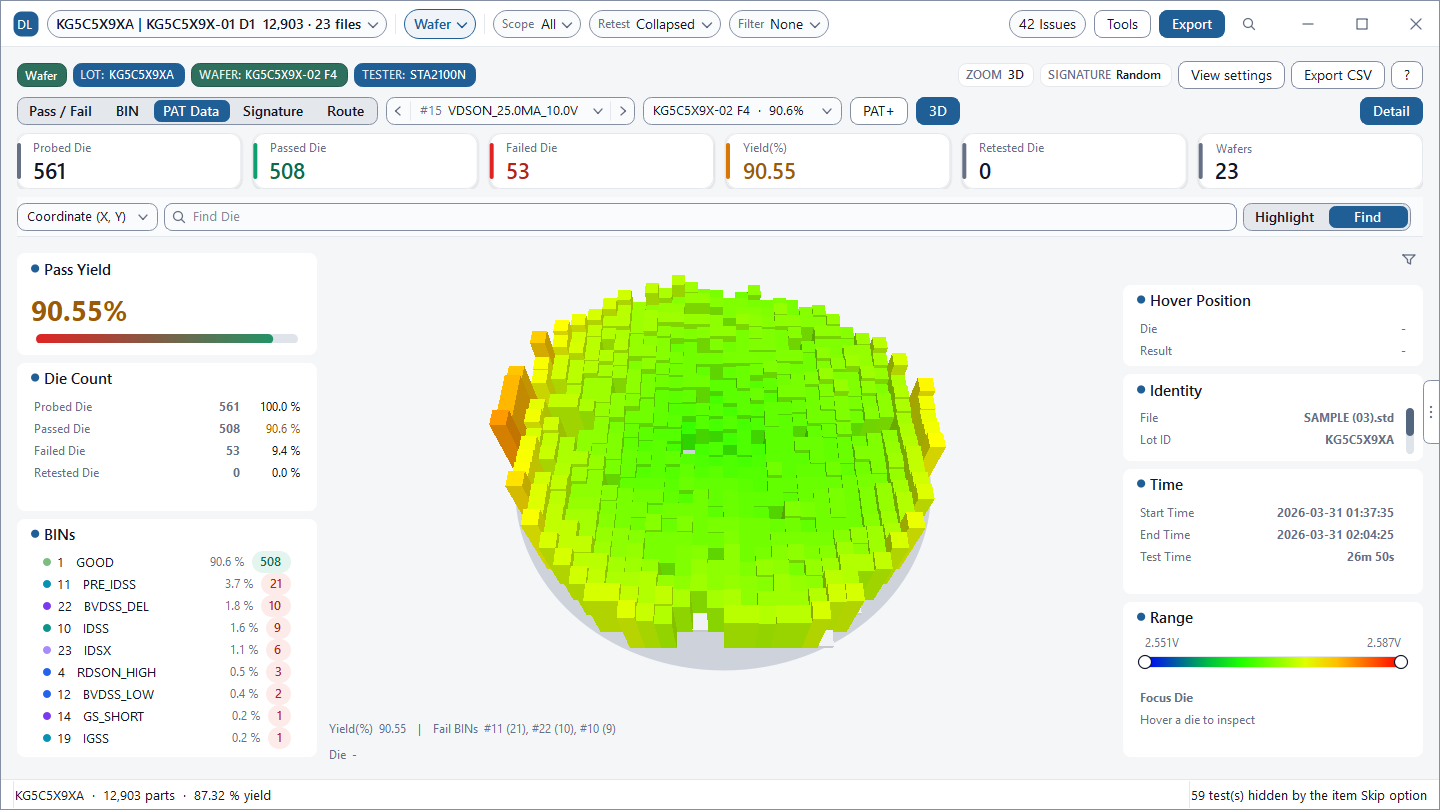
Subtle gradient shifts that look flat on 2D heatmaps are rendered as 3D pillars on DLOG's accelerated canvas. Rotate 360 degrees, tilt, and zoom to examine process topography.
| 3D Mode | Visualization Engine | Benefit |
|---|---|---|
| Bars | Single wafer dies rendered as 3D pillars. Bar height = relative position inside PAT band (LL~HL). Outliers clipped at peak. | Exposes electrical gradients across the wafer surface (e.g., dome, saddle, bowl shapes). |
| Stack | Multi-wafer composite yield topography. Bar height = pass rate percentage (0~100%). | Chronic repeating failure hotspots appear as deep sunken craters. |
| 3D Scatter | Plots units as 3D points using 3 test parameters as X, Y, and Z axes. | Explores correlation structures and clusters across 3 parametric variables. |
| Waterfall | Arranges distribution strips for each file side-by-side along the Z-axis (endpoints cover <p1 and >p99 tails). | Compares drift across lots or temperature steps (-40°C, 25°C, 85°C). |
Customize visual shading (Soft, Studio, Sharp) and bar spacing (Gap, Tiled). Top switches to an orthographic top-down view; Reset restores the default perspective. If a very high bar count triggers the "rotation may be slow" warning, isolate to a single wafer or narrow filters.
7. Wafer Gallery Overview
A typical lot contains 25 wafers. Wafer Gallery lays out all open wafers in a thumbnail grid so you can scan dozens of maps in seconds and isolate problematic wafers.

| Gallery Feature | Description & Operation |
|---|---|
| Sort: Yield | Sorts lowest-yielding wafers to the front with one click. Sort: File restores the original file order. |
| 2D / 3D Toggle | In 3D mode, PAT Data height reflects measurement value, while Pass/Fail and BIN mode heights indicate good dies as tall and bad dies as low (in BIN mode, height indicates pass/fail while color reflects bin number). Drag to rotate. |
| Signature Badges | Displays pattern labels like Clustered or Ring automatically. |
| Instant Navigation | Double-click any wafer card to open it directly in the main Wafer Map. Right-click to pin its info tooltip. |
| Unified PAT Scale | In PAT mode, all cards use the lot-wide common scale, ensuring consistent visual comparisons. |
8. Reticle Map (Stepper Shot Diagnostics)
Photolithography steppers and scanners transfer reticle masks containing multiple dies in repeated shots across the wafer. If a mask contains a microscopic particle or a lens has localized optical aberration, the exact same relative position inside every shot fails repeatedly.

| Feature | Operation and Principle |
|---|---|
| PX · PY & Auto Detect | Specify the actual horizontal and vertical die count in a single exposure shot (e.g., PX=4, PY=3). On a 100-die-wide wafer with PX=10, dies 1, 11, 21... 91 aggregate into the first column. The Auto button suggests candidate shot sizes, but this is a heuristic recommendation, not a statistical certainty. |
| Summary Cards | Displays Overall (wafer weighted average), Worst cell, Best cell (with delta vs average), and Low support (count of sample-deficient cells). |
| Yield / Value Mode | Compares average cell yield (%) or the average parametric measurement value for each position within the shot. |
| Pattern Readout | Generates one-line summaries like "Column 1 is repeatedly weak across rows" (−5.4 pt) or "Bottom field is consistently strong". Here pt denotes percentage points relative to the mean. |
| Low Support Gate | Cells with die/wafer counts below gating thresholds (3 wafers / 8 dies) are marked with hatching (Low support). Treat these cells cautiously due to low statistical confidence. |
PX and PY represent the actual die grid count of the lithography reticle, not arbitrary screen tiles. Using mismatched dimensions scrambles spatial positions and invalidates results. If reticle layout is known from design rules, enter it directly. Also note that cell origins are estimated relative positions per wafer, not absolute machine reticle origins.
9. Wafer Diff Map (1:1 Comparison)
Compare baseline wafer A against experimental wafer B, high-temp vs room-temp test runs, or pre- vs post-retest logs on a coordinate-by-coordinate basis. Requires 2 or more wafers with valid coordinates to be loaded. Select A (baseline) and B (comparison) at the top, and click Swap A/B to invert direction.

| Color | State | Definition and Meaning |
|---|---|---|
| Red | Regressed | Passed in A but failed in B (e.g., 1 → 10). Indicates new defects induced by recipe changes or stress testing. |
| Green | Recovered | Failed in A but recovered to pass in B (e.g., 30 → 1). Measures retest recovery and overkill reduction. |
| Orange | BIN Changed | Pass/Fail status is unchanged, but the Soft BIN number changed, indicating failure mode transitions. |
| Light Color | Both Pass | Consistent passing yield across both runs. |
| Value Mode | Delta (B − A) | Heatmap showing how much the parametric reading in B increased (Red) or decreased (Blue) relative to A. |
Fail overlap (Jaccard) near 0 indicates completely disjoint failure populations between wafers. The Regression pattern readout summarizes the spatial location of newly regressed defects (e.g., "Clustered · worst SW").
10. Die History & Retest Traceability
"Why did this die fail at the initial insertion but show up as a pass in the final report?"
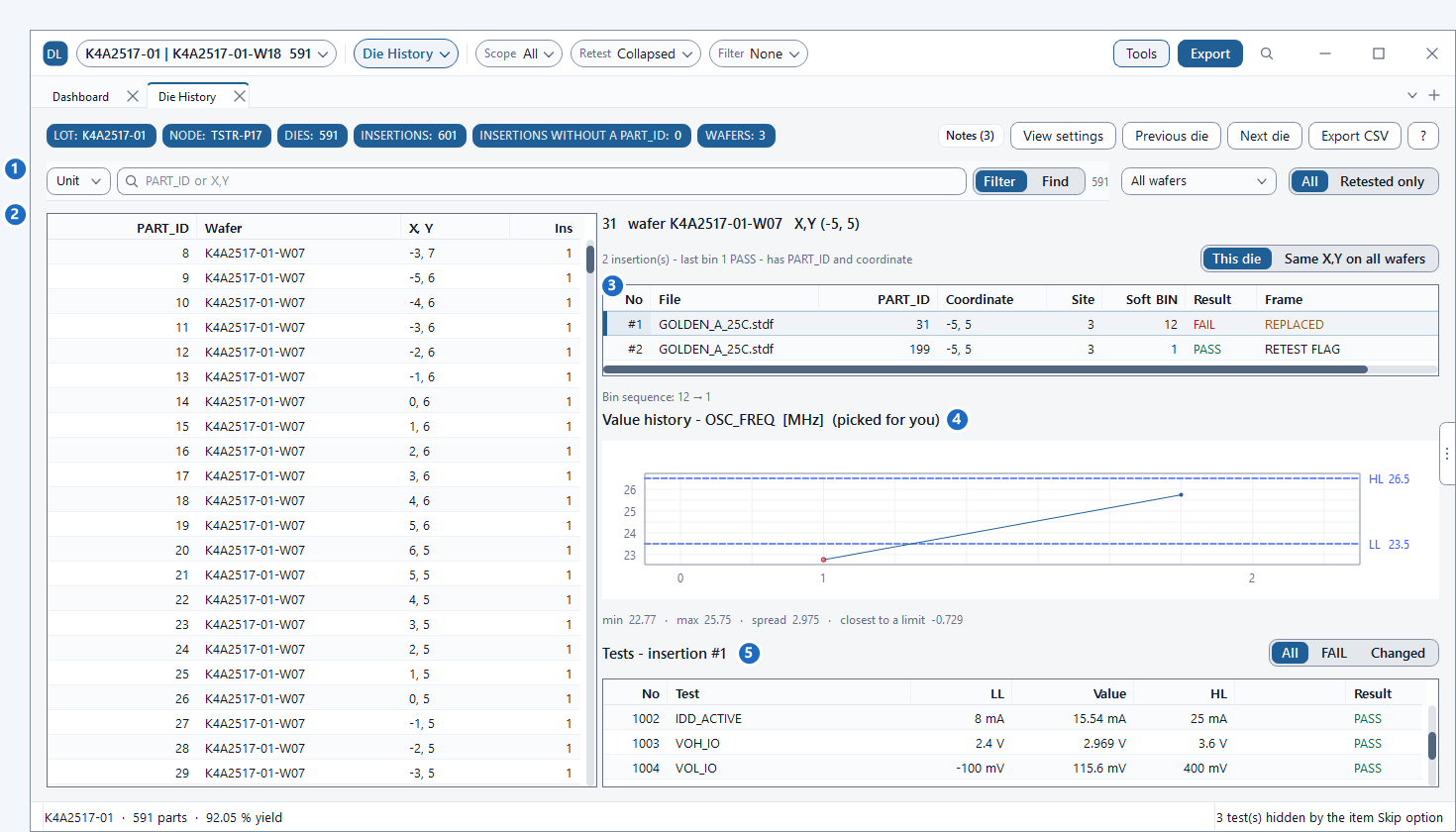
Die History reconstructs the chronological timeline of every prober insertion, contact touch-down, and retest attempt for an individual die.
| Frame Badge | Status and Meaning |
|---|---|
REPLACED |
Indicates a subsequent retest insertion replaced this result, excluding it from final yield calculation. |
RETEST FLAG |
Insertion officially designated with a retest flag by the tester or STDF header. |
DELETED |
Manually deleted insertion (e.g., due to contact anomalies). Rendered dimmed to preserve audit integrity. |
FILTERED |
Insertion temporarily hidden by active global filter criteria. Also rendered dimmed. |
NO COORD / NO PART_ID |
Insertions missing wafer coordinates or missing PART_ID, respectively. |
OUT OF SCOPE |
Insertion located in a file outside the active scope. This view scans all open files to link matching dies across files. |
Value History Chart & Changed Filter
The Value history chart plots how measurements evolved across successive insertions against dotted spec limits (LL/HL).
Enabling the Changed filter in the lower table isolates only tests where values or pass/fail outcomes changed between insertions, listing the delta in the vs #N column.
DLOG connects multi-insertion records using either PART_ID or X,Y coordinates. Even in coordinate-free final test data, devices with serialized PART_IDs are traced across retests seamlessly.
11. Wafer Sort Engineering Best Practices
1. Verifying Wafer Orientation and Flat/Notch Alignment
Before diagnosing spatial defect trends, always confirm that wafer orientation parameters in DLOG's right panel match physical fab loading specs:
- Notch / Flat Direction: Confirm whether the notch is configured as Bottom, Top, Left, or Right.
- +X, +Y Coordinate Axes: Confirm that X/Y positive axis increment directions match between systems. Inverted directions cause identical defect signatures to appear rotated or mirrored.
2. Distinguishing Probe Pin Contact Issues from Fab Process Defects
- Clues for Probe Contact Failure: In multi-site setups, only one specific site shows abnormal yield loss (see right panel Site Status), failures repeat on the map along the multi-DUT layout, and Signature Cluster Score is near 0. Units often recover upon retest.
- Clues for Fab Process Defect: Failures occur across all test sites regardless of DUT number, cluster in specific topological zones (Edge ring, Center, rings) with high Cluster Score, and rarely recover upon retest.
These criteria are helpful diagnostic guidelines rather than definitive proof. When uncertain, cross-check Site views, Reticle Maps, and Diff Maps.
12. Frequently Asked Questions (FAQ)
Q. Can I view wafer maps from Final Test STDF files?
Final test occurs on packaged ICs after wafer sawing, so STDF files lack X,Y coordinates. The wafer map displays "This lot has no wafer coordinates." However, Die History traces serialized units via PART_ID, and Table View and Chart View provide full parametric analysis.
Q. Does DLOG remain responsive with huge 300 mm wafer files?
Even for high-density wafers with massive die counts, smoothly zoom with the mouse wheel and pan by dragging to focus on any region. However, when rendering very high bar counts in 3D, a "rotation may be slow" warning may appear. In that case, isolate to a single wafer or narrow filters.
Q. Which measurement is displayed for retested dies?
DLOG displays the LAST insertion result by default. To inspect earlier attempts, right-click the die to toggle the #1 (initial probe) button in the detail card, or open Die History.
Q. Can I export high-resolution wafer map images for reports?
Yes. Under the wafer canvas View settings menu, use Copy Image (clipboard) or Save Image (PNG/JPEG), or Export CSV for tabular data. Under Export > Save Report, enabling Wafer Map, Gallery, Reticle Average Map, and Wafer Diff Map embeds high-resolution wafer images into PDF / Word / Image reports. Excel reports export numerical values instead of graphics, generating dedicated grid sheets for Wafer BIN Map. For equipment interchange, use Convert Datalog to generate SINF, G85, or SEMI E142 wafer map files (for single-wafer STDF files).
Q. Can I compare multiple wafer lots together?
Yes. Drag-and-drop multiple STDF files to browse all wafers in the Wafer Gallery, or use STACKED mode to composite hundreds of wafers into a single yield map.
Discover Hidden Yield Patterns with DLOG
Eliminate tedious manual spreadsheet manipulation and custom scripting. Experience instant interactive wafer maps, 3D surface topography, reticle shot diagnostics, and die history tracing on raw STDF V4 datalogs. Free for 6 months with all features enabled.
Download DLOG Free for 6 Months →